
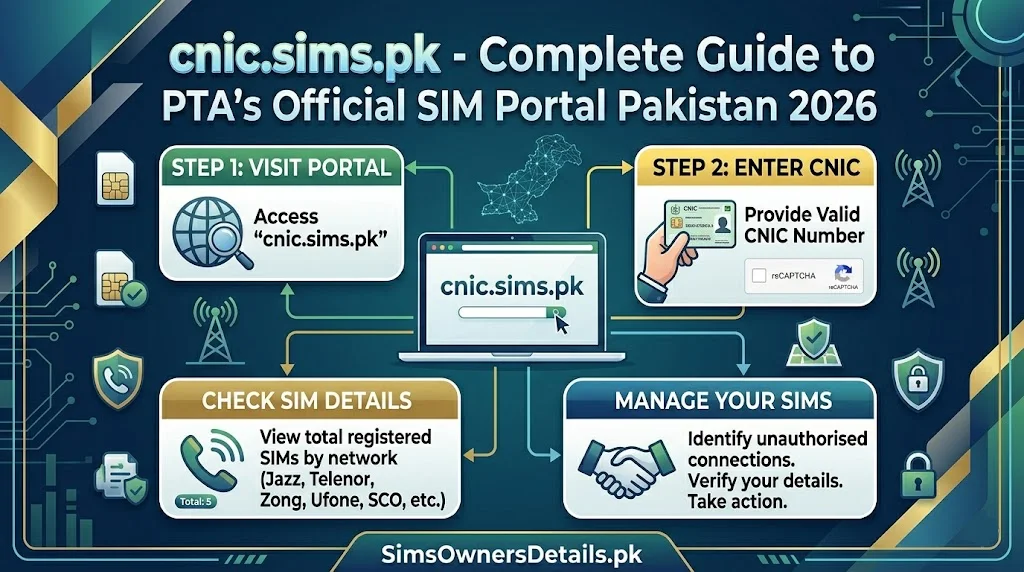
cnic.sims.pk is Pakistan’s official government web portal for SIM card verification — operated directly by PTA (Pakistan Telecommunication Authority). It is the browser-based equivalent of the 668 SMS service, providing every Pakistani citizen with a free, real-time view of all SIM cards registered against their CNIC number across every mobile network in the country.
While 668 is faster for routine checks, cnic.sims.pk has specific advantages that make it the preferred tool in particular situations — especially for overseas Pakistanis, for users who need documented evidence of their SIM status, and for anyone checking SIMs on behalf of multiple family members from a single device.
This guide covers everything about cnic.sims.pk: how to use it correctly, what the results mean, how to troubleshoot common problems, how it compares to 668, what its limitations are, and precisely when it is the better choice over other verification methods.
Direct Access: Go to
cnic.sims.pkin any browser, enter your 13-digit CNIC, complete the CAPTCHA, and receive a complete list of all SIMs on your CNIC. Free, official, real-time — takes under 2 minutes.
What Is cnic.sims.pk?
cnic.sims.pk is a web portal officially operated by PTA as part of Pakistan’s national consumer protection framework for mobile services. It provides browser-based access to PTA’s Centralized SIM Registration System (CSRS) — the same national database queried by the 668 SMS service.
Official status: This is a government portal operated by PTA. It is not a third-party service, not a commercial lookup tool, and not affiliated with any mobile operator. PTA created it specifically to give every Pakistani citizen direct access to their own SIM registration data.
What it queries: PTA’s live CSRS database — updated within 30–60 minutes of any new SIM registration or deactivation across all five Pakistani networks.
What it shows: Every active SIM card registered under the queried CNIC number, labeled by network operator (Jazz, Zong, Telenor, Ufone, SCO).
Cost: Completely free. No registration required. No login account needed.
How to Use cnic.sims.pk — Step by Step
Prerequisites:
- Any internet-connected device (phone, tablet, laptop, desktop)
- Any browser (Chrome, Safari, Firefox, Edge — any browser works)
- Your 13-digit CNIC number
Complete Step-by-Step Process:
Step 1: Open your preferred browser on any device.
Step 2: In the address bar, type exactly: cnic.sims.pk
- Do not add www. before it
- Do not add https:// unless your browser requires it
- The portal should load within 2–5 seconds on a normal connection
Step 3: The portal displays a simple input form. You will see:
- A text field labeled “CNIC Number” or similar
- A CAPTCHA challenge below the input field
- A Submit button
Step 4: In the CNIC Number field, type your 13-digit CNIC number.
- Correct format:
3520212345671 - Incorrect format:
35202-1234567-1(dashes will cause an error) - Double-check all 13 digits before proceeding — a single wrong digit returns no results or incorrect results
Step 5: Complete the CAPTCHA challenge.
- The CAPTCHA protects the portal from automated scraping
- Common CAPTCHA types: image selection (“select all traffic lights”), text input (“type the characters shown”), or simple math problem
- Complete the CAPTCHA exactly as instructed
Step 6: Click the Submit or Verify button.
Step 7: The results load — typically within 2–5 seconds for normal internet speeds.
Step 8: Review your results carefully (see “Understanding Your Results” section below).
Step 9: Screenshot the results page immediately before closing.
- Screenshots serve as official documentation for PTA complaints, FIRs, and bank disputes
- Make sure the screenshot captures: your CNIC number, the full list of SIMs, and the date/time visible on your device
Understanding Your cnic.sims.pk Results
The portal presents results in a structured format. Here is how to read every element:
Result Element 1: Your CNIC Number (Confirmed)
The portal echoes your CNIC number in the results — confirming the query was processed for the correct CNIC.
Result Element 2: Total SIM Count
A summary line shows how many active SIMs are registered on your CNIC. This is your most important number — compare it to how many SIMs you actually own.
Result Element 3: SIM List
Each registered SIM appears as a separate entry showing:
- The mobile number (may be partially masked in some portal versions)
- The network operator: Jazz, Zong, Telenor, Ufone, or SCO
Interpreting Your Results — Decision Matrix:
| What You See | What It Means | Action |
|---|---|---|
| All numbers are yours | SIM registration is clean | No action — recheck monthly |
| A number you don’t recognize | Unauthorized SIM | Report immediately |
| Zero SIMs shown | No active SIMs on CNIC | Check your CNIC number is correct |
| Fewer SIMs than you own | One SIM may be deactivated or on wrong CNIC | Visit franchise |
| “CNIC not found” error | Possible wrong CNIC entry or NADRA issue | Retry carefully |
cnic.sims.pk vs 668 SMS — Detailed Comparison
Both tools query the same PTA database but differ in important practical ways:
| Feature | cnic.sims.pk | 668 SMS |
|---|---|---|
| Access method | Internet browser | Any mobile SMS |
| Internet required | ✅ Yes | ❌ No |
| Works abroad | ✅ Yes (any country) | ❌ No (Pakistan only) |
| Works without SIM | ✅ Yes (any device) | ❌ No (needs active SIM) |
| Works without data balance | ❌ No | ✅ Yes |
| Results format | Visual webpage | Text SMS reply |
| Screenshot possible | ✅ Yes (clean screenshot) | ✅ Yes (screenshot of SMS) |
| Speed | 1–2 minutes | 30–60 seconds |
| CAPTCHA required | ✅ Yes | ❌ No |
| Database accuracy | ✅ Same as 668 | ✅ Same as portal |
| Cost | Free | Free |
| Best for | Documentation, abroad use | Daily monitoring, no internet |
| Checking multiple CNICs | ✅ Easier (just re-enter) | ⚠️ Requires separate SMS each |
When cnic.sims.pk Is the Better Choice:
Scenario 1: You are outside Pakistan 668 is a local short code and cannot be dialed from a foreign network. cnic.sims.pk works from any country with internet — making it the primary tool for overseas Pakistanis monitoring their CNIC.
Scenario 2: You need a documented screenshot for a complaint The portal’s structured visual output screenshots more cleanly and professionally than an SMS conversation screenshot. For PTA complaints, FIRs, and bank fraud disputes, a cnic.sims.pk screenshot is often clearer evidence.
Scenario 3: You are checking multiple family members’ CNICs From a single device and a single internet connection, you can check CNICs for your entire household — entering each CNIC number separately. This is more practical than sending multiple 668 SMS messages and managing the replies.
Scenario 4: Your mobile phone has no SMS capability Some devices — tablets without SIM cards, laptops, desktops — cannot send SMS. cnic.sims.pk works from any internet-connected device.
Scenario 5: Your SMS is not working but Wi-Fi is available Network outages, SIM issues, or exhausted SMS balance may prevent 668 use. If internet via Wi-Fi is available, cnic.sims.pk provides the same verification.
For a comprehensive overview of all official Pakistan SIM data tools and how to use them together for maximum protection, visit simsownersdetails.pk/pak-sim-data/.
Common cnic.sims.pk Problems and Solutions
Problem 1: Portal Not Loading
Symptoms: Browser shows error, page blank, or loading indefinitely.
Causes and solutions:
- Intermittent server load: PTA’s portal experiences high traffic, especially after major SIM fraud news stories. Try again after 15–30 minutes.
- Browser compatibility: Try a different browser. Chrome and Firefox have the highest compatibility.
- DNS issue: Try clearing your browser cache and cookies, then reload.
- ISP blocking: In rare cases, ISPs have routing issues with government portals. Try using mobile data instead of Wi-Fi, or switch to a different network.
- Server maintenance: PTA occasionally conducts scheduled maintenance. Try again after a few hours.
Problem 2: CAPTCHA Not Working
Symptoms: CAPTCHA keeps refreshing, or your CAPTCHA solution is rejected repeatedly.
Solutions:
- Ensure your browser supports JavaScript — CAPTCHA systems require it
- Try a different browser
- Disable any browser extensions that might interfere with CAPTCHA (ad blockers, privacy extensions)
- If using a VPN, disable it — CAPTCHAs sometimes flag VPN IP addresses
Problem 3: “CNIC Not Found” Error
Symptoms: Portal returns no results or an error message.
Solutions:
- Verify you entered exactly 13 digits
- Remove any dashes, spaces, or special characters
- Check your CNIC card and re-enter the number carefully
- If the error persists despite correct entry: your CNIC may have a data issue in NADRA’s database — visit any NADRA Registration Centre with your original CNIC
Problem 4: Results Show Fewer SIMs Than You Own
Possible explanations:
- One of your SIMs may be temporarily deactivated (inactivity, non-payment)
- A SIM may have been registered under a different CNIC due to an original error
- A SIM may be in “BVS Pending” status and not yet fully reflected
Solution: Check via 668 as well — if the same SIM is missing from 668, the issue is in PTA’s database. Visit the operator’s franchise with your CNIC to investigate.
Problem 5: Results Show More SIMs Than You Own
This is your most critical finding. Any SIM you do not recognize is potentially unauthorized.
Immediate action:
- Screenshot the portal results immediately
- Identify which number is unrecognized and which network it is on
- Call PTA at 0800-55055
- Call the relevant operator’s helpline
- File an FIR at your local police station
How cnic.sims.pk Updates — Technical Accuracy
Understanding the portal’s update mechanism prevents confusion when results seem incomplete:
Update cycle: The portal queries PTA’s CSRS in real-time when you submit your CNIC. However, the CSRS itself updates from operator databases every 30–60 minutes after a SIM registration event.
Practical implication: A SIM registered at 2:00 PM will appear in cnic.sims.pk by approximately 2:30–3:00 PM.
Deactivation updates: When a SIM is permanently deactivated, it is removed from the portal results within 24–48 hours of the deactivation being processed.
Blocking updates: When an unauthorized SIM is blocked following a PTA complaint, it disappears from cnic.sims.pk results within 24–48 hours of the block taking effect.
After-blocking verification: Always re-check cnic.sims.pk (and 668) 48 hours after requesting a SIM block to confirm the blocked number has been removed from your CNIC record. This screenshot serves as official evidence that the blocking was successful.
Using cnic.sims.pk for Documentation — Best Practices
When using portal results as evidence (PTA complaints, FIRs, bank disputes):
How to Create the Best Screenshot Evidence:
Before screenshotting:
- Ensure your device’s date and time are set correctly — the screenshot metadata will include this
- Ensure the full CNIC number and full list of SIMs are visible in the screenshot
- Do not crop the screenshot — keep the full portal URL visible in the browser bar
What a complete evidence screenshot should show:
- The cnic.sims.pk URL in the browser address bar
- Your CNIC number (it appears in the results)
- The complete list of SIMs with network labels
- The date and time (visible on your device clock or in browser interface)
For PTA complaints: Include the screenshot as an attachment when filing at complaint.pta.gov.pk.
For police FIR: Print the screenshot or show it on your device to the station officer — they can include the information in the FIR.
For bank fraud disputes: Email the screenshot to your bank’s fraud team along with your complaint reference numbers from PTA and police.
cnic.sims.pk for Overseas Pakistanis — Complete Guide
This section specifically addresses the UK, Middle East, Europe, and other diaspora communities:
How to Access from Abroad:
cnic.sims.pk works from any country — you do not need a Pakistani SIM or Pakistani IP address. Simply:
- Open any browser on any device
- Go to cnic.sims.pk
- Enter your Pakistani CNIC or NICOP number
- Complete CAPTCHA
- View results
Recommended monitoring schedule for overseas Pakistanis:
- Monthly check minimum
- Within 48 hours of any visit to Pakistan (during visits, your CNIC may have been shared for hotel or government registration)
- After any financial or identity document activity in Pakistan
If you find an unauthorized SIM while abroad:
- Screenshot the portal results immediately
- Email complaints@pta.gov.pk with the screenshot and unauthorized number details
- File at complaint.pta.gov.pk — works internationally
- Call PTA at 0800-55055 via international call (charges apply) or request a family member in Pakistan to call on your behalf
For ongoing monitoring tools and Pakistan’s complete SIM fraud tracking resource, visit simsownersdetails.pk/live-tracker/.
Frequently Asked Questions — cnic.sims.pk
Q: Is cnic.sims.pk an official PTA website or a third-party service?
A: cnic.sims.pk is an official PTA-operated portal. It is part of Pakistan’s national consumer protection infrastructure for telecommunications. It is not a private or commercial service.
Q: Does using cnic.sims.pk leave any record that I checked my SIM data?
A: PTA logs portal queries as part of standard system administration. Your query is associated with the CNIC number entered. This logging is PTA’s internal record — it is not shared publicly.
Q: Can I use cnic.sims.pk to check someone else’s CNIC?
A: Technically, the portal allows any CNIC to be entered. However, entering another person’s CNIC to view their SIM data without authorization is illegal under PECA 2016 Section 14. Use the portal only for your own CNIC.
Q: The portal is asking me to create an account — is this the real cnic.sims.pk?
A: The official cnic.sims.pk portal does NOT require account creation or login. If you see a login or registration prompt, you may be on a fake phishing website. Check the URL carefully in your browser bar — it should show exactly cnic.sims.pk with no variations.
Q: How often should I check cnic.sims.pk?
A: Monthly minimum. Additionally check within 48 hours of sharing your CNIC anywhere, and immediately if you suspect any SIM fraud activity.
Q: cnic.sims.pk shows 4 SIMs but I own only 3. What do I do?
A: One SIM in the list is unauthorized. Identify which number you do not recognize, note its network operator, and immediately report to PTA at 0800-55055 and the relevant operator’s helpline. Screenshot the portal results as evidence.
Q: Does cnic.sims.pk work on mobile browsers or only desktop?
A: cnic.sims.pk works on all browsers including mobile browsers (Chrome, Safari, Firefox on Android and iOS). The portal is responsive and functions correctly on smartphone screens.
Q: I checked cnic.sims.pk and it shows 0 SIMs but I have an active SIM. Is there a problem?
A: This suggests your SIM may be registered under a different CNIC (a registration error). Enter your CNIC very carefully and retry. If 0 results persist, visit your operator’s franchise with your original CNIC for biometric verification and registration correction.
Summary — cnic.sims.pk Complete Reference
| Topic | Detail |
|---|---|
| Portal URL | cnic.sims.pk |
| Operated by | PTA (Pakistan Telecommunication Authority) |
| Cost | Completely free |
| Networks covered | Jazz, Zong, Telenor, Ufone, SCO |
| Database | PTA CSRS (same as 668) |
| Update frequency | Near real-time (30–60 min after registration) |
| Login required | No |
| Works from abroad | Yes — any country with internet |
| Best use cases | Overseas checks, documentation, multiple CNICs |
| Compared to 668 | Equally accurate, slower, better for documentation |
cnic.sims.pk is one of the most important digital tools available to Pakistan’s mobile users — free, official, and working from anywhere in the world. Use it monthly, screenshot your results, and act immediately if anything unexpected appears.
For Pakistan’s most comprehensive SIM verification and CNIC protection resource library, visit Sim Owner Details.
Related guide:
- SCO SIM Owner Details Check — AJK and Gilgit-Baltistan Complete Guide 2026
- How Many SIMs on My CNIC — NADRA vs PTA vs 668 Which Is Most Accurate Pakistan 2026
- PTA Helpline 0800-55055 — What to Report and How to File Complaint Pakistan 2026
- NICOP vs CNIC — Which One to Use for SIM Registration Overseas Pakistanis 2026
- SIM Information Check by Mobile Number Pakistan 2026 — Free Official Guide
 SIM OWNER DETAILS